



Bitcoin has a long and eventful trading history that makes it one of the most analyzed assets in the world. Historical price data is not just numbers on a chart—it’s the foundation for backtesting strategies, spotting market cycles, understanding investor behavior, and even powering apps or research tools. Reliable data helps traders validate decisions, researchers test theories, and developers build features that their users can trust.
In this guide, we’ll walk through two practical ways to download Bitcoin’s historical price data using CoinGecko’s resources:
-
Direct export from the Bitcoin page on CoinGecko (no code required).
-
Using the CoinGecko API for automated access in spreadsheets or code.
By the end, you’ll be equipped to retrieve Bitcoin’s past prices, whether you need a quick CSV file for analysis or an automated data feed for your project.

How to Download Bitcoin Historical Data in Excel or CSV Format?
The quickest way to download historical Bitcoin data is directly from the CoinGecko Bitcoin Historical Data page. This method is perfect for anyone who needs the data in a CSV or Excel spreadsheet format for a quick one-off analysis, as no account sign-up or login is required.
If you need more granular data, the CoinGecko API provides endpoints like /coins/{id}/market_chart and /coins/{id}/ohlc for historical prices and OHLC data.
How to Download Bitcoin Historical Data From The CoinGecko Website
Follow these simple steps to download the data in just a few clicks.
Step 1: Navigate to the Bitcoin coin page on CoinGecko and click the Historical Data tab.
Step 2: Select your desired timeframe from the options available (e.g., last 7 days, 30 days, 1 year, or a custom date).
Step 3: In the top-right corner of the data table, click the Download Icon and choose to download the data as a CSV or XLS file as seen below:
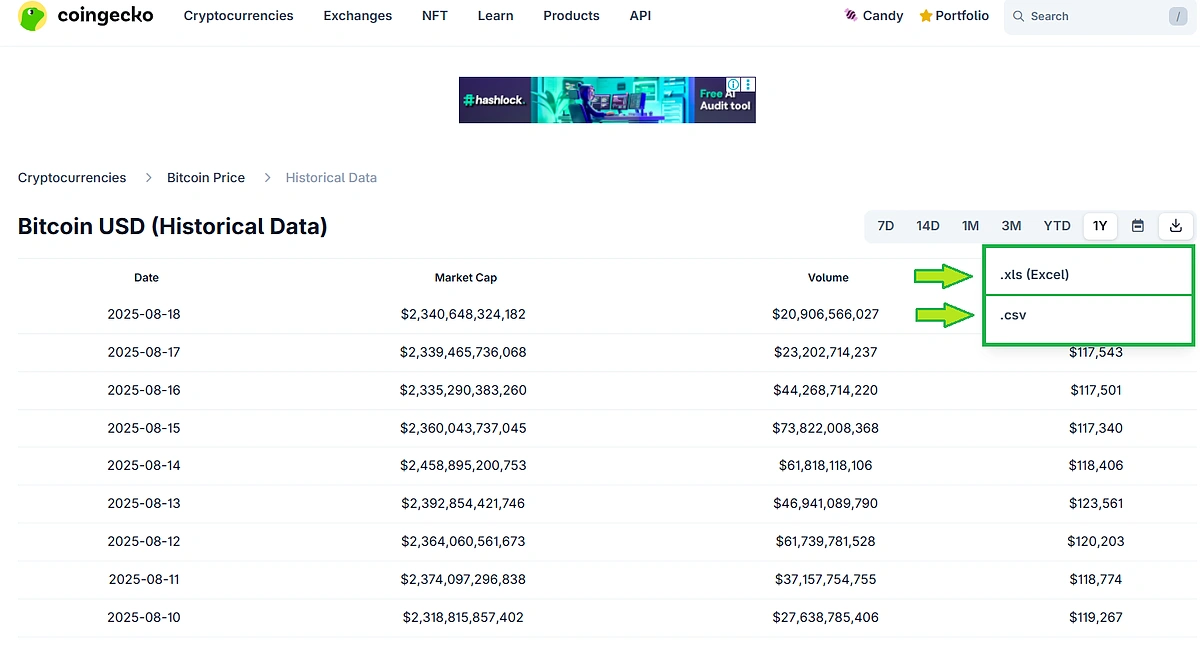
Once downloaded, the file can be opened in any spreadsheet software like Excel or Google Sheets. The data is pre-formatted with clear column headers (Date, Market Cap, Volume, Price), ready for you to create charts, run calculations, or import into other tools.
Here is an example of the exported data in Microsoft Excel:

How to Download Bitcoin Historical Data Using CoinGecko API?
For repeatable workflows, precise time windows, or data you can refresh on demand, the CoinGecko API is the ideal solution. It allows you to pull Bitcoin’s historical prices directly into your spreadsheets or projects for analysis, dashboards, or backtesting trading strategies.
There are two primary ways to use the API:
-
No-Code: Import data directly into Google Sheets or Excel.
-
With Code: Fetch data programmatically using languages like Python, JavaScript, PHP, and more.
Both methods require a CoinGecko API key. If you don’t have one, follow this guide to get your free Demo API key. For this guide, the API coin ID for Bitcoin is simply bitcoin.
Download Bitcoin Historical Data in Google Sheets or Excel (No Code)
If you prefer a no-code approach, you can pull Bitcoin's historical price data directly into Google Sheets or Excel using the CoinGecko API. This allows you to analyze, chart, and share the data without any programming.
Google Sheets
You can use the free API Connector extension to pull the data.
-
Install API Connector: Add the "API Connector by Mixed Analytics" extension from the Google Workspace Marketplace.
-
Create a New Request: In the extension, create a new request and enter the CoinGecko API request URL for historical data:
-
Demo API:
https://api.coingecko.com/api/v3/coins/bitcoin/market_chart?vs_currency=usd&days=30&interval=daily&precision=full?x_cg_demo_api_key=YOUR_API_KEY -
Pro API:
https://pro-api.coingecko.com/api/v3/coins/bitcoin/market_chart?vs_currency=usd&days=30&interval=daily&precision=full?x_cg_pro_api_key=YOUR_API_KEY
-
-
Run the Request: Execute the request to pull the data into your current sheet and download the data in your desired format.
For a detailed walkthrough with screenshots, read our full guide on how to import crypto prices into Google Sheets.
Microsoft Excel:
Excel's built-in Power Query tool can fetch data directly from the API.
-
Open Power Query: In Excel, go to the Data tab and select From Web.
-
Enter API URL: In the dialog box, enter the API request URL:
-
Demo Api:
https://api.coingecko.com/api/v3/coins/bitcoin/market_chart?vs_currency=usd&days=30&interval=daily&precision=full?x_cg_demo_api_key=YOUR_API_KEY -
Pro Api:
https://pro-api.coingecko.com/api/v3/coins/bitcoin/market_chart?vs_currency=usd&days=30&interval=daily&precision=full?x_cg_pro_api_key=YOUR_API_KEY
-
-
Transform and Load: The Power Query Editor will open, allowing you to transform the JSON response into a table before loading it into your worksheet for download and export.
For a detailed walkthrough with screenshots, read our full guide on how to import crypto prices into Excel.
Download Bitcoin Historical Data with Python
For more advanced or automated use cases, you can fetch data programmatically. While the CoinGecko API works with any language that supports HTTP requests, this guide uses Python due to its popularity in data analysis.
API Endpoints and URLs
The base URLs for the Demo and Pro APIs are:
-
Demo API:
https://api.coingecko.com/api/v3 -
Pro API:
https://pro-api.coingecko.com/api/v3
For historical price data, we will use the /coins/{id}/market_chart endpoint. This endpoint returns prices, market caps, and 24h volumes for a specified number of days.
In this section, we’ll walk through how to use Python to fetch Bitcoin’s historical price data.
Step 1: Prerequisites
-
Install Python
-
Download from python.org.
-
Version 3.7 or above is recommended.
-
Confirm installation by running this on your Terminal or Command Prompt:
-
python --version
-
Create a Virtual Environment
This keeps dependencies clean and project-specific. First, run the command below in your Terminal or Command Prompt to create the environment:
python -m venv coingecko_env
Next, activate it using the command for your operating system:
-
Windows: coingecko_env\Scripts\activate
-
macOS/Linux: source coingecko_env/bin/activate
-
Install Required Packages
In your environment, install the following packages:
-
Requests: Allows your program to make API calls (send and receive data over the web).
-
Pandas: A powerful library for handling and organizing tabular data. We’ll use it to tidy up the API output.
-
Openpxyl: A library that lets Pandas write to Excel workbooks.
-
Pathlib: A handy standard library tool to check if a file already exists.
pip install requests pandas openpxyl pathlib
-
Check If The Packages Are Correctly Installed
You can confirm the packages are installed by running:
pip show requests pandas
Step 2: Managing Your API Keys
To keep your API key secure and separate from your code, store it in an external JSON file.
Create a file named api_keys.json and add your keys like this:
Step 3: Setting up key retrieval and API calling
Once you have installed the prerequisites and securely stored your API keys in the appropriate locations, the next step is to set up helper functions that ensures:
-
Your API keys are being loaded correctly.
-
The program can successfully communicate with the CoinGecko API.
First, we'll set up helper functions to load the API key and make requests to the CoinGecko API. The get_Response() function will handle the API calls, taking the endpoint, headers, and parameters as arguments. This modular approach keeps the code clean and reusable.
Step 4: Test the API Connection
Before fetching the full dataset, it's good practice to test your setup. The /ping endpoint is a simple way to confirm that your API key is working correctly. The following script loads your key, pings the API, and then makes a small test call to fetch the first two data points for Bitcoin.
If everything is working, you should see a response as shown below:

Step 5: Fetching Bitcoin Historical Price Data
Now, let's use the /coins/{id}/market_chart endpoint to fetch historical data for the last 7 days.
What this does:
-
Calls the Coin Historical Chart Data by ID endpoint via get_Response().
-
Stores the JSON response in mc.
-
Make sure to define the key, headers, endpoint, and params.
Step 6: Process and Download the Data to Excel
The API response returns prices, market caps, and volumes in separate lists of lists. The following code processes this raw JSON data, combines it into a clean Pandas DataFrame, and saves it to a sheet in an Excel workbook. If the file already exists, it will replace the sheet to allow for easy reruns of the script.
Example output:

You can customize the output by changing these variables:
-
value_col: rename columns (e.g., "price_in_usd").
-
sheet_name: set how your Excel sheet will appear (e.g., "btc_30d_eur").
-
out_path: choose the filename or folder for saving your Excel workbook.
How to Download Historical Data for Other Cryptocurrencies
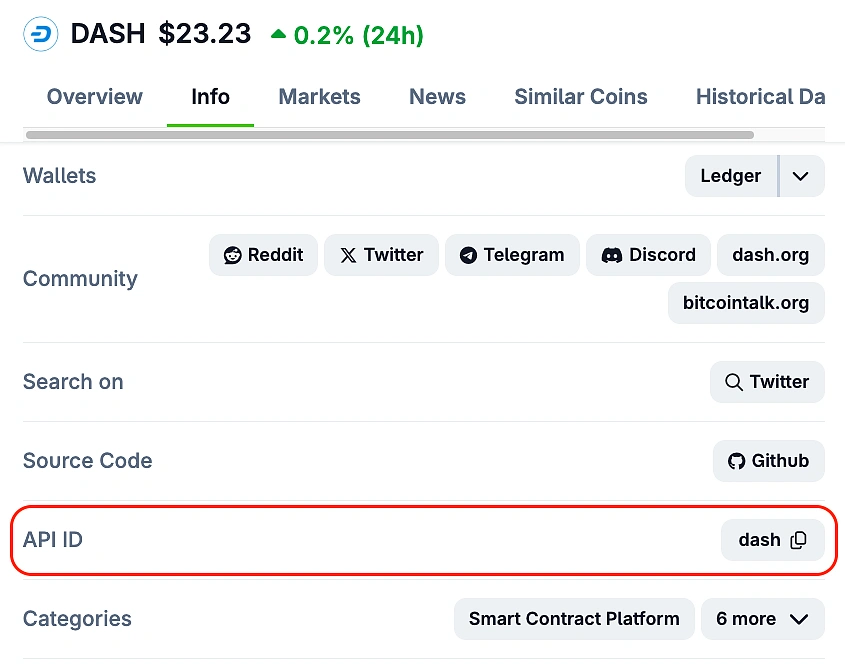
While this guide uses Bitcoin as the example, the same methods apply to thousands of other cryptocurrencies available on CoinGecko. To fetch another coin’s data, simply replace the coin ID in your API call (for example, change "bitcoin" to "ethereum" or "solana").
You can find the API ID on any individual coin page on the CoinGecko website.
Future Developments
With access to historical data, you can build a variety of powerful tools. For readers who want to explore further, here are some related guides:
-
Backtesting Strategies: Use historical data to test the performance of trading strategies with our crypto backtesting guide.
-
Paper Trading Bot: Simulate trades in a risk-free environment by building a crypto paper trading bot.
-
Price Prediction Models: Apply machine learning techniques to forecast future prices with our guide on building a Bitcoin price prediction model.

Conclusion
In this guide, we demonstrated two effective methods for downloading Bitcoin historical data from CoinGecko. The direct export from the website is ideal for quick, manual data pulls into CSV or Excel, while the CoinGecko API offers a powerful, programmatic solution for developers and analysts using tools like Google Sheets, Excel, or Python. By following the steps outlined, you can access the rich historical data needed to power your analysis, backtest strategies, and build DeFi applications.
While the endpoints used in this article can be accessed with a free Demo API key, it only provides up to 365 days of historical data. To access data back to 2013 with greater granularity, higher rate limits, and access to exclusive endpoints, consider subscribing to a paid API plan.

Subscribe to the CoinGecko Daily Newsletter!








 Or check it out in the app stores
 Ethereum Mainnet
 Base Mainnet
 BNB Smart Chain
 Arbitrum
 Avalanche
 Fantom
 Flare
Flare
 Gnosis
 Linea
Linea
 Optimism
 Polygon
 Polygon zkEVM
 Scroll
 Stellar
 Story
Story
 Syscoin
 Telos
Telos
 X Layer
 Xai
Xai